Linux powers most of the Internet, a significant share of corporate servers and, as Android (a modified version of its kernel), runs the majority of the world’s smartphones, yet its presence in the desktop/laptop market remains minimal. However, as other operating systems become ever more inflexible and intrusive and global politics bring the issue of technology and data sovereignty to the fore, interest in Linux as a potential alternative is growing. Here, three professional translators who have made the switch – Marc Prior, Jean Dimitriadis and Marc Escalera – share their experiences of moving over to Linux and describe how they use it in their day-to-day translation work.
Q: Why, when and how did you start using Linux for work?
I first tried Linux in 1999, out of frustration with Windows. I didn’t have a plan; I was just curious. But I was immediately impressed by it. I moved over to using Linux for work step by step.
Marc P.
Marc Prior: I first tried Linux in 1999, out of frustration with Windows. I didn’t have a plan; I was just curious. But I was immediately impressed by it. I moved over to using Linux for work step by step. In 1999, the applications I needed were more or less non-existent: there was no CAT tool whatsoever for Linux, at least not to my knowledge, and the word processors that existed had very poor compatibility with Microsoft Word. That changed radically in the early 2000s, so that by 2001 I was already doing some of my work on Linux and in 2003 was able to drop Windows altogether.
Jean Dimitriadis: I started using GNU/Linux in 2007. Upon transitioning to working as an independent translator in 2015, I made it a point to do so while remaining faithful to my Linux setup. It may have been an additional challenge at the time as I was navigating other dimensions of freelance work, but I didn’t want to abandon my preferred operating system and the freedom it provides.
Since the only Windows-specific software I use is Trados Studio (…) and I could circumvent that problem with a private instance of Windows on a virtual machine, using Linux was just the logical step for me.
Marc E.
Marc Escalera: I started using Linux at work around the same time I began using it in my personal life, about a year ago. I became quite interested in privacy and cybersecurity due to the growing interest of countries around the world in surveilling their citizens, and to prevent my data from being misused by Big Tech. After defining my own privacy model (Privacy Guides was a godsend for this), I realized that I wanted full control over my data, as that was what made me feel at ease. And for that, the best options available are Linux-based OSs and open-source software. Since the only Windows-specific software I use is Trados Studio – and I’m actually using it less and less – and I could circumvent that problem with a private instance of Windows on a virtual machine (take a look at Winutil if you’re interested in debloating Windows), using Linux was just the logical step for me.
Q: Which version of Linux do you currently use, and why did you choose that one?
MP: I knew nothing about Linux in 1999. I didn’t even know what “distributions” were, much less their respective merits. But after one particularly annoying experience with Windows, I walked into a PC store and asked them if they had ‘Linux’, and walked out again with a SuSE Linux installation CD and an installation manual. It turned out that SuSE wasn’t by any means the worst choice, and it’s what I used for most of the next decade. Then I switched briefly to Ubuntu before settling on its Kubuntu variant. The reasons: The larger distributions have large repositories of applications, similar to the Microsoft Store, but everything is usually free and open source. If an open-source application is worth having, it’s probably in the (K)Ubuntu repository, which in turn means that installation will almost certainly be straightforward.
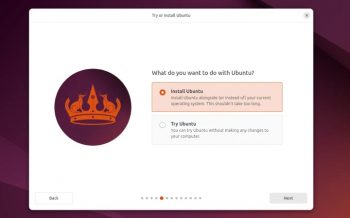
Being hugely popular, Ubuntu and Kubuntu have further advantages – such as when you’re searching the Internet for a solution to a problem. They’re also much less likely to be discontinued.
The two most popular desktop environments are KDE (now Plasma) and GNOME. They differ in their philosophies, a little like the difference between Windows (which is more like KDE/Plasma) and Mac OSX (which is more like GNOME). I much prefer KDE/Plasma, which is what SuSE used by default and Kubuntu also uses (hence the K; Ubuntu uses GNOME).
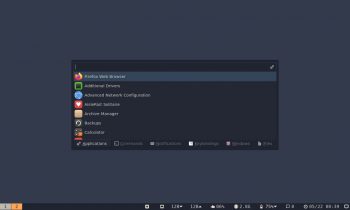
For the past six years, I’ve relied on Regolith Desktop, built on a highly stable Ubuntu foundation (currently the 24.04 LTS release).
Jean D.
JD: Long gone are my days of distro-hopping, which started with OpenSUSE (KDE) and passed through intermediate stations like Crunchbang (Openbox), Linux Mint (Cinnamon), and Arch/Antergos (Gnome). For the past six years, I’ve relied on Regolith Desktop, built on a highly stable Ubuntu foundation (currently the 24.04 LTS release).
Regolith is a lightweight environment featuring a highly efficient, keyboard-friendly i3/Sway tiling window manager. Because it’s so light, I can work comfortably without needing the latest hardware. More importantly, it perfectly suits my digital nomad lifestyle, allowing me to work exclusively from a laptop. I used to rely on a 24” dual-screen setup, but Regolith completely eliminates that need: if two applications share a desktop, they split the screen automatically. Navigating between workspaces and resizing windows using only the keyboard is so effortless that I don’t miss the extra screen real estate at all.
I feel happy about my choice. Once you pass the initial setup phase, Linux-based OSs are the most stable tools you can work with, especially with the most recent releases of Arch Linux.
Marc E.
ME: I chose Arch Linux specifically because it only installs what you allow it to. If I make a mistake, I face the consequences, and it’s entirely up to me to fix it. If I get something right, I take all the credit. We’re solely responsible for our actions, and I want my OS to do exactly what I want it to do, and nothing else: no AI slop, no bloat. Seeing the issues many Windows users had with the recent updates, I feel happy about my choice. Once you pass the initial setup phase, Linux-based OSs are the most stable tools you can work with, especially with the most recent releases of Arch Linux.
Q: What type of work do you do, in which fields and for which client profiles?
MP: My specialist fields are industrial automation, particularly electrical and electronic, and occupational safety and health. I translate mainly from German and only into English, and almost all my work is for end clients.
JD: I provide translation, localization and subtitling services primarily in the IT and marketing sectors, along with editorial and creative work. I collaborate with select agencies, and my current workload is heavily made up of projects for major tech companies and EU institutions.
At the same time, I’m at an exciting professional juncture. Drawing on my academic and literary background, I’m increasingly dedicating time to independent projects. Working with English, French and Sanskrit, I’m currently preparing my own book editions centred around a nondual philosophical tradition. While corporate localization remains a core part of my work, venturing into self-publishing opens up entirely new possibilities.
ME: I mainly work for other language service providers, in the fields of software and hardware localization, retail, marketing, finance and tourism. I also have a few direct B2B clients in Spain. I provide translation, post-editing, proofreading and subtitling services, as well as some ICR services for specific clients.
Q: Have you encountered any obstacles in using Linux for your work and, if so, how do you get around them?
The OS largely determines what applications are available, and that in turn the data compatibility. This was a serious obstacle 25 years ago, but is much less so now.
Marc P.
MP: Obstacles aren’t really about the operating system; they’re primarily about data formats (in practice, file formats). However, the OS largely determines what applications are available, and that in turn the data compatibility. This was a serious obstacle 25 years ago, but is much less so now. LibreOffice, for example, has very good compatibility with Microsoft Office. OnlyOffice is even better, as it uses Microsoft’s own file formats as its native formats. The main CAT tools support industry-standard file formats like TMX, TBX and XLIFF (including the Trados SDLXLIFF extension of XLIFF), and CAT tools that will run on Linux are available that support these formats.
Problems do arise, as in any technical system, and I think that solutions begin with the user having an understanding of how the system works. This isn’t unique to any particular operating system or software application.
JD: The main obstacles usually revolve around software compatibility and interoperability. Some industry-standard CAT tools and complex MS Office macros remain heavily tied to Windows, although fortunately, a good deal can be handled with existing solutions.
Another historical pain point was the «voice gap». For years, professional dictation meant relying on expensive, Windows-locked software like Nuance Dragon. Because I was committed to Linux, I simply had to forgo voice dictation entirely. Fortunately, open-source AI models like OpenAI’s Whisper have completely levelled the playing field, finally bringing highly accurate, offline voice-to-text capabilities natively to my desktop.
I used to have to spin up a heavy Windows VM just to process complex scanned PDFs. However, modern AI machine-learning vision models and advanced open-source tools have bridged that gap beautifully.
Jean D.
Likewise, for OCR (Optical Character Recognition), ABBYY FineReader was the undisputed, Windows-only champion for a very long time. I used to have to spin up a heavy Windows virtual machine (VM) just to process complex scanned PDFs. However, modern AI machine-learning vision models and advanced open-source tools have bridged that gap beautifully, allowing me to handle OCR natively without needing a VM anymore.
As for the remaining compatibility issues, I get around them by setting strict professional boundaries. For instance, if a client sends a proprietary translation package, CafeTran Espresso handles most of those formats natively on my Linux desktop, although there have certainly been some edge cases or occasionally more involved workarounds. On the rare occasions an agency demands that I log into a heavily locked-down, Windows-only server environment, I simply pass on the project. I’m an independent professional, not running a minimart. My focus is entirely on building long-term collaborations, and maintaining a stress-free, lightning-fast Linux workflow is far more valuable to me than compromising my system to accommodate every proprietary workflow under the sun.
The Arch Linux wiki, the package search tool and the AUR (Arch User Repository) are incredibly useful tools for finding software and information, and doing almost everything you need with this OS.
Marc E.
ME: I’m no expert when it comes to using the terminal, and I’m always looking up code snippets on the Arch Linux wiki to change my OS settings because I forget them. Also, I managed to crash my first installation attempt due to a corrupt file system. Having said that, as a translator, I’m well-used to hunting down information everywhere, and the Arch Linux wiki, the package search tool and the AUR (Arch User Repository) are incredibly useful tools for finding software and information, and doing almost everything you need with this OS. As per work obstacles specifically, I don’t recall having any.
Q: How do you do your work on Linux? Which tools and applications do you use?
MP: These are the main tools I use (a complete list would be much longer!):
- OmegaT: This is my CAT tool and where I do almost all my translation work. (Disclosure: I’m a member of the OmegaT development team.)
- Okapi: These are resources that provide (among other things) excellent file filters for OmegaT and therefore compatibility.
- LibreOffice: Similar to Microsoft Office, and the office suite I use for my own purposes.
- OnlyOffice: I much prefer LibreOffice, but I use OnlyOffice to make adjustments (removing unwanted line breaks is a common example) to MS Office files sent by customers before translating them in OmegaT.
- Okular: My PDF viewer of choice. It also acts as a preview function for OmegaT.
- Firefox and Thunderbird: These are my primary browser (I sometimes also use Opera or Chrome) and my email client, respectively. Both are produced by Mozilla.
Those are the main tools, but there’s a vast number of other tools I use some of the time. That includes tools I use for my second business, which is building websites.
My core toolkit includes LibreOffice and the Antidote grammar checker with its excellent English<>French dictionaries. For my independent publishing projects, I increasingly rely on plain markdown files for translation.
Jean D.
JD: I’ve explored various applications over the years, but ultimately, I favour simplicity. My main desktop CAT tool is CafeTran Espresso, a brilliant cross-platform Java-based application that natively handles major proprietary translation formats on Linux. For certain agency collaborations, I also rely on various online, browser-based CAT tools.
Outside of that, my core toolkit includes LibreOffice and the Antidote grammar checker with its excellent English<>French dictionaries. For my independent publishing projects, I increasingly rely on plain markdown files for translation, which allows me to focus strictly on the text itself.
ME: Since the main CAT tool I use is Phrase, and the other tools provided by my clients and my invoicing tools are web-based, I don’t use many Linux-specific tools for translation. I already mentioned Trados Studio using Windows through the Remote Desktop Protocol (RDP), so I can use my Linux shortcuts on Windows.
Speaking of shortcuts, my favourite tool is Espanso, a text expander that allows you to create custom shortcuts easily. No more typing ALT+0133 for an ellipsis! It’s also available for Mac and Windows, but my RDP-run Windows instance lets me use Linux shortcuts on Windows, while I wouldn’t be able to do it the other way around.
These aren’t specific to any Linux OS, but tiling managers allow users to navigate through their entire computer using only their keyboard. I use Hyprland because it can be nice-looking and relatively easy to set up, but there are many available options such as Niri or Sway. Between Hyprland and Espanso (see more about it below), my wrist problem from using the mouse is almost a thing of the past now.
For office software, I use the LibreOffice suite of tools. They’re less advanced than their Windows counterparts, but they’re just fine for my use case.
For email and anything privacy-related in general, I use the Proton suite of tools. Their email client isn’t incredibly extensive, but I like to keep my inbox nice and clean, without excessive bloat or options on screen. I tried Thunderbird, but the UI feels a bit outdated to me.
For a comprehensive list of Linux-available tools for translators, see Translate on Linux, curated by Jean Dimitriadis. I could be talking about tools for hours …
Q: For you, what are the main benefits of using Linux for work?
A quarter of a century ago, I found Linux – perhaps subjectively – much more logical and transparent than Windows. Even back in 1999, it had features that I immediately wouldn’t want to be without.
Marc P.
MP: A quarter of a century ago, I found Linux – perhaps subjectively – much more logical and transparent than Windows. Even back in 1999, it had features that I immediately wouldn’t want to be without, like virtual desktops, which I gather didn’t appear in Windows until 2015, with Windows 10. Linux has always been regarded as being more secure, though Windows has improved a lot in this regard over the years. To be honest, though, I don’t really think about the benefits of the operating system; it’s just what I use, and it works. Windows now seems alien to me, and Linux, including its multiple manifestations in different distributions, will doubtless feel strange to most Windows users, at least initially.
People have different reasons for using Linux. For some, it’s that it’s free (as in free of charge). For others, it’s that it’s free as in “libre”, meaning open source; you can even modify the code, or pay a programmer to do so, if you wish. For me, it’s about the freedom to choose what tools I use rather than having that decision made for me by a software company.
Security-wise, Linux makes it incredibly easy to use full-disk encryption right out of the box.
Jean D.
JD: At the end of the day, like a good translator, a good operating system must be completely transparent: it should offer an efficient interface to the hardware and then get out of the way, boosting productivity. There’s a profound joy in working from a highly stable, privacy-respecting system that you’ve chosen and tailored perfectly to fit your own logic. Linux avoids the forced background updates that break concentration, providing the ultimate foundation for uninterrupted professional focus.
Security-wise, Linux makes it incredibly easy to use full-disk encryption right out of the box. Combined with seamless backups to encrypted external hard drives, it gives me complete peace of mind regarding the safety and confidentiality of my clients’ data, especially while travelling.
ME: My productivity has skyrocketed since I started using Linux for work, especially since I’ve been using a tiling manager and shortcuts. Navigating between windows or desktops couldn’t be easier without the need to use a mouse. What’s more, the ability to customize the operating system however you like is a great plus for me.
Q: What would be your advice to someone interested in trying Linux for work?
Don’t expect everything to be easy at first; using Linux isn’t any more difficult than using Windows, but it is different.
Marc P.
MP: Now is a great time to try Linux, because Microsoft has decided to end support for Windows 10, and Windows 11 won’t run on a lot of legacy hardware that still has a lot of life left in it. So people will be disposing of a lot of PCs, including high-spec machines, that aren’t particularly old and are capable of delivering very respectable performance with Linux.
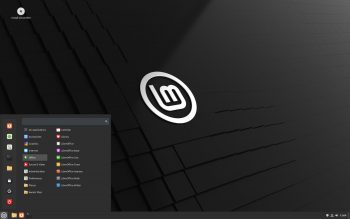
The distributions I recommend trying are Mint, Ubuntu or Kubuntu – any of those. You’ll need to download a “bootable image” of Linux and use it to make a bootable USB stick from which you can install the operating system on the PC. You can find instructions online on how to do this.
And then, just try it! For example, on a small job with a long deadline. Don’t expect everything to be easy at first; using Linux isn’t any more difficult than using Windows, but it is different. And if you need to use different applications, like a new CAT tool, they also have their own learning curves.
JD: My first piece of advice is to dip your toes in before taking the plunge. Today, you can actually start by using Windows Subsystem for Linux (WSL) right inside Windows. It’s a great, zero-risk way to familiarize yourself with the environment and its tools without altering your current setup.
Once you’re ready for the real desktop experience, I recommend setting up a dual-boot system, or keeping a separate computer with Windows or having Windows VM as a fallback. However, the golden rule of any migration applies here: always make a rigorous, verified backup of your data before partitioning any drives. Eventually, for the best comfort, speed and focus, you’ll want to transition to running Linux natively on your hardware without any virtualization layers getting in the way.

With the recent end of support for Windows 10 and the strict hardware requirements of Windows 11, many professionals are realizing they don’t need to throw away perfectly good computers just to appease an operating system. This broader tech migration translates into a renewed interest from translators. Today, Linux offers a mature, professional environment that is more than ready for heavy-duty linguistic work.
Finally, don’t be intimidated by the learning curve. One of the greatest hidden benefits of Linux is that it’s actually much easier to find support than it is for proprietary systems. When something doesn’t work, Linux gives you clear, specific error logs rather than a vague «something went wrong» screen. Pasting that log into a quick web search – or nowadays, simply querying an LLM – will almost always give you the exact solution. Between AI assistants and a highly supportive open-source community that has likely already documented your exact issue, you’re never truly on your own.
Generally, I’d suggest anyone keen on giving Linux a try to start out with Linux Mint or Fedora, since they’re very beginner-friendly.
Marc E.
ME: One of the best things about Linux is the sheer number of choices available to get started at your own pace. Generally, I’d suggest anyone keen on giving Linux a try to start out with Linux Mint or Fedora, since they’re very beginner-friendly. Installing those first in a virtual machine can be a great option. This way, if you mess anything up, you can just uninstall the virtual machine and redo everything.
I honestly feel Linux is the best group of operating systems anybody can use for personal use, but many people feel trapped by the tools they use on other systems. You don’t have to change everything at once. It worked for me, but going little by little is obviously the recommended approach. Try and install one piece of software at a time, and you’ll be using a full Linux-based system before you know it!

Marc Prior
Born in the UK in 1964 and determined at 14 to become a translator, Marc studied German and Italian at Bangor University and completed a translation diploma at the University of Kent. He started working in translation for the British subsidiary of a German switchgear manufacturer. In 1991, he emigrated to Germany, taking up a staff position with a translation agency. Two years later, he began translating independently – as he is still doing today.
Marc discovered Linux in 1999, documenting his experience on the linuxfortranslators.org website. He supported Keith Godfrey, OmegaT’s original developer, in re-launching OmegaT as an open-source project in the early 2000s. He is grateful to the many colleagues who have since taken up the baton in these projects. Besides translating, Marc’s current project is a second business building websites. He is a proud European and German citizen, and lives with his wife in Wuppertal.

Jean Dimitriadis
Jean is a geographically independent translator, editor and poet working with English, French, Greek and Sanskrit. His daily work bridges IT localization for major tech clients and independent publishing projects centred on a nondual philosophical tradition. A dedicated GNU/Linux user since 2007, he also curates TranslateOnLinux.org and The CafeTran Files for the professional translator community.

Marc Escalera
English to Spanish/Catalan translator (also Spanish<>Catalan), holding a Bachelor's Degree in Translation and Interpreting and a Master's Degree in Translation Technology from the Universitat Autònoma de Barcelona. Specializing in software and app localization, he also works in the tourism, marketing and finance sectors. He began his career in 2016 and took a significant step in his professional journey by joining Asetrad in 2023.
